> ## Documentation Index
> Fetch the complete documentation index at: https://docs.wappfy.com.br/llms.txt
> Use this file to discover all available pages before exploring further.

# Integração com GoHighLevel

> Passo-a-Passo de como realizar a integração com o GHL

## Passo-a-Passo

<Steps>
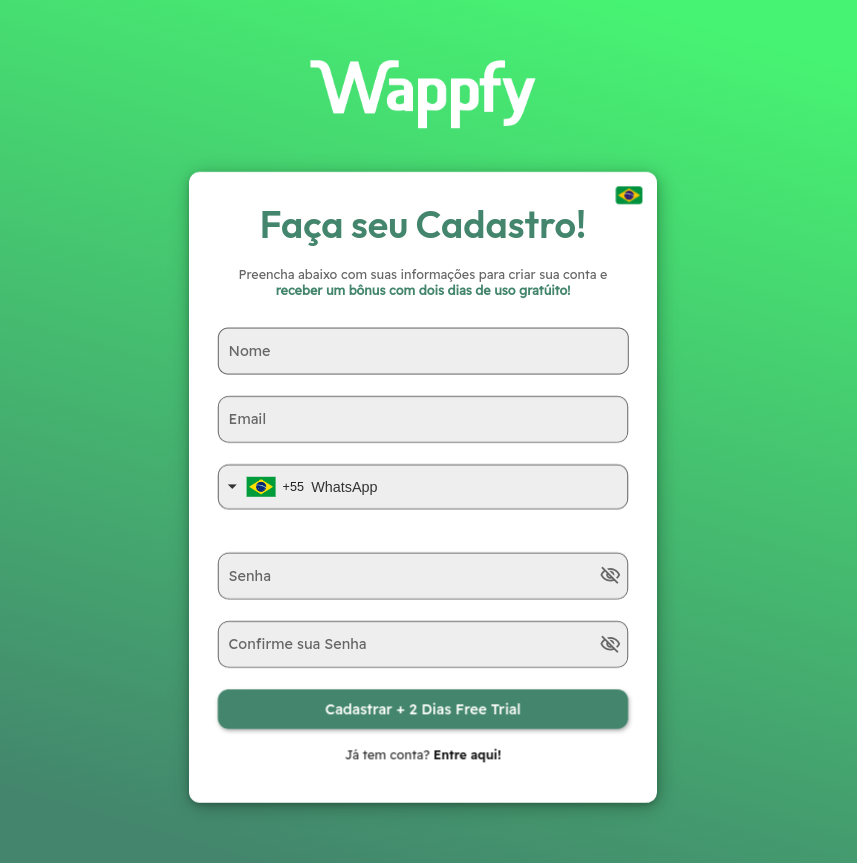
  <Step title="Criar Conta Wappfy">
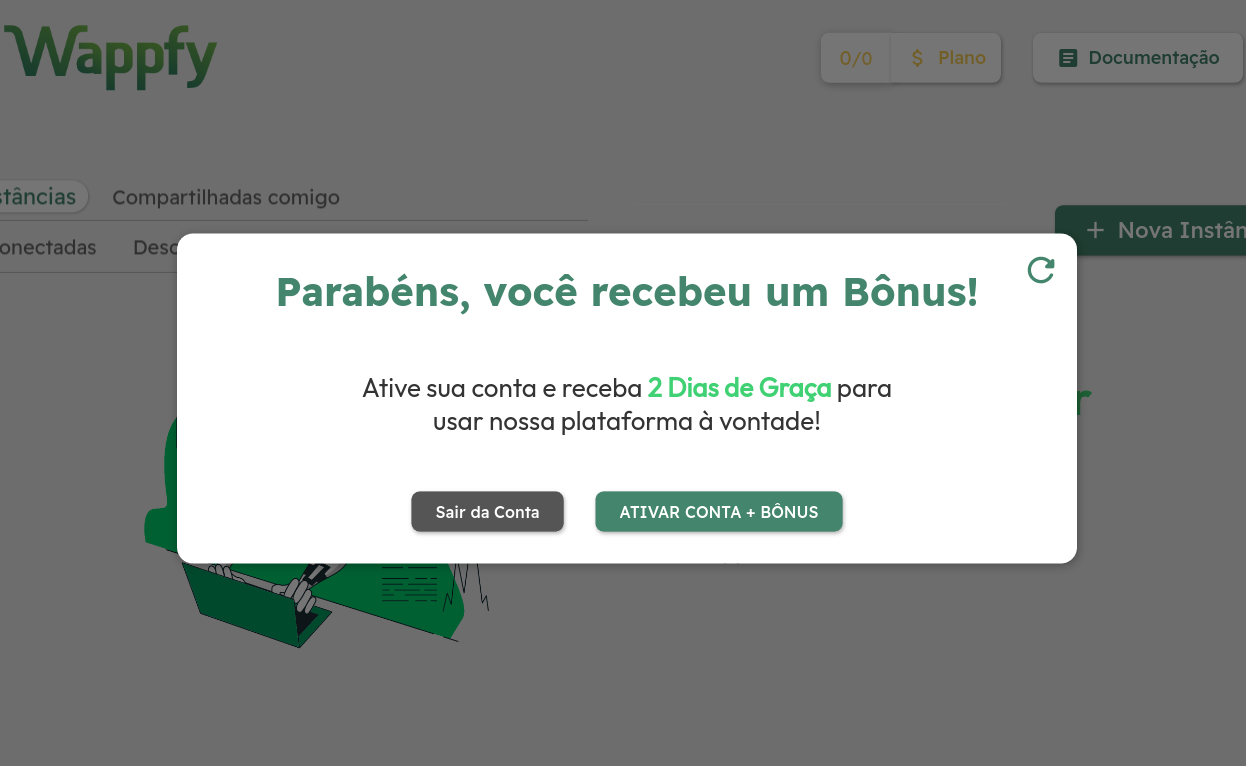
    Crie e ative sua conta pela [Dashboard](https://dash.wappfy.com.br).
    <Frame>
      <img width="300" src="https://mintcdn.com/stgcompany/TAy5IIm4Yq3mr8PO/pt/assets/ghl/1_signup.png?fit=max&auto=format&n=TAy5IIm4Yq3mr8PO&q=85&s=402a2cce065c65bd19e2f7f9217b9efa" data-path="pt/assets/ghl/1_signup.png" />

      <img width="490" src="https://mintcdn.com/stgcompany/TAy5IIm4Yq3mr8PO/pt/assets/ghl/2_buy.png?fit=max&auto=format&n=TAy5IIm4Yq3mr8PO&q=85&s=b553b023b0ae8501b7d8bf5319166817" data-path="pt/assets/ghl/2_buy.png" />
    </Frame>
  </Step>

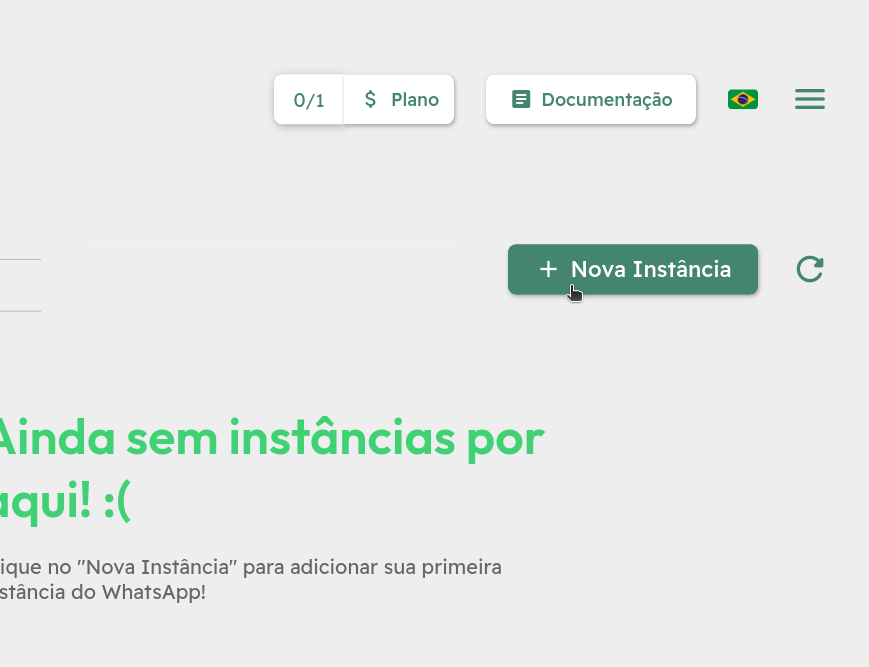
  <Step title="Criar Instância">
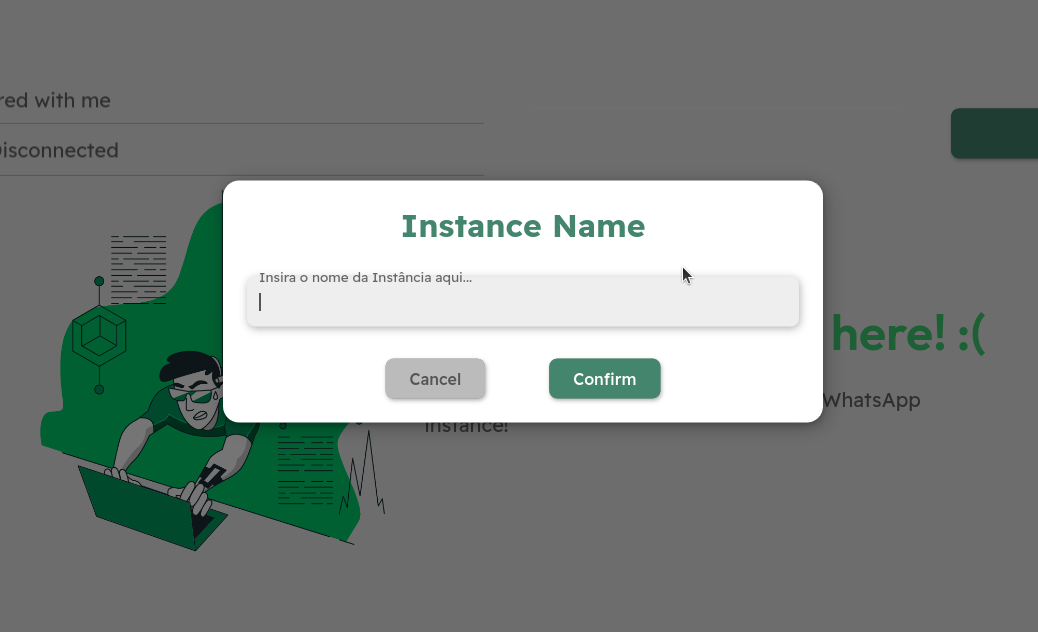
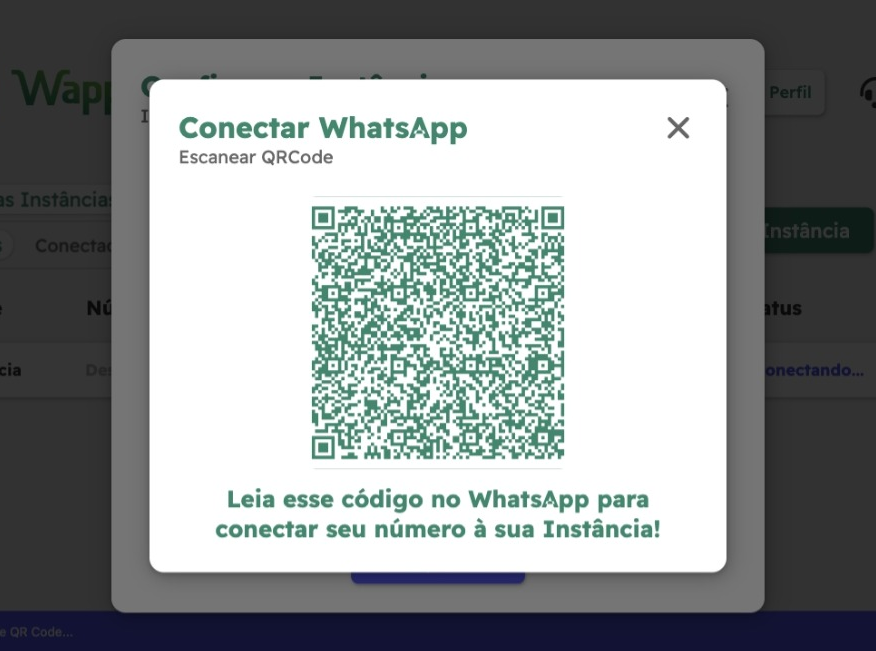
    Crie uma Instância e conecte seu número do WhatsApp.
    <Frame>
      <img width="320" src="https://mintcdn.com/stgcompany/TAy5IIm4Yq3mr8PO/pt/assets/ghl/3_new_instance.png?fit=max&auto=format&n=TAy5IIm4Yq3mr8PO&q=85&s=9c08fd725f50013c25d80b3ee85fd014" data-path="pt/assets/ghl/3_new_instance.png" />

      <img width="405" src="https://mintcdn.com/stgcompany/TAy5IIm4Yq3mr8PO/pt/assets/ghl/4_instance_name.png?fit=max&auto=format&n=TAy5IIm4Yq3mr8PO&q=85&s=0ee766e05033680f32844347dbced9a3" data-path="pt/assets/ghl/4_instance_name.png" />

      <img width="330" src="https://mintcdn.com/stgcompany/TAy5IIm4Yq3mr8PO/pt/assets/ghl/5_qr_code.png?fit=max&auto=format&n=TAy5IIm4Yq3mr8PO&q=85&s=a6a105a03260e022814256b6956d0417" data-path="pt/assets/ghl/5_qr_code.png" />
    </Frame>
  </Step>

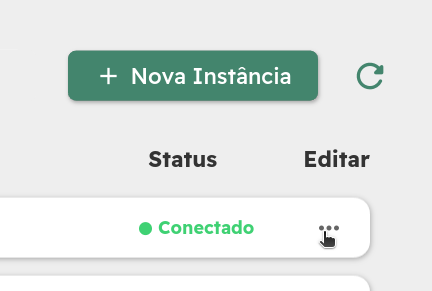
  <Step title="Integrar ao GHL">
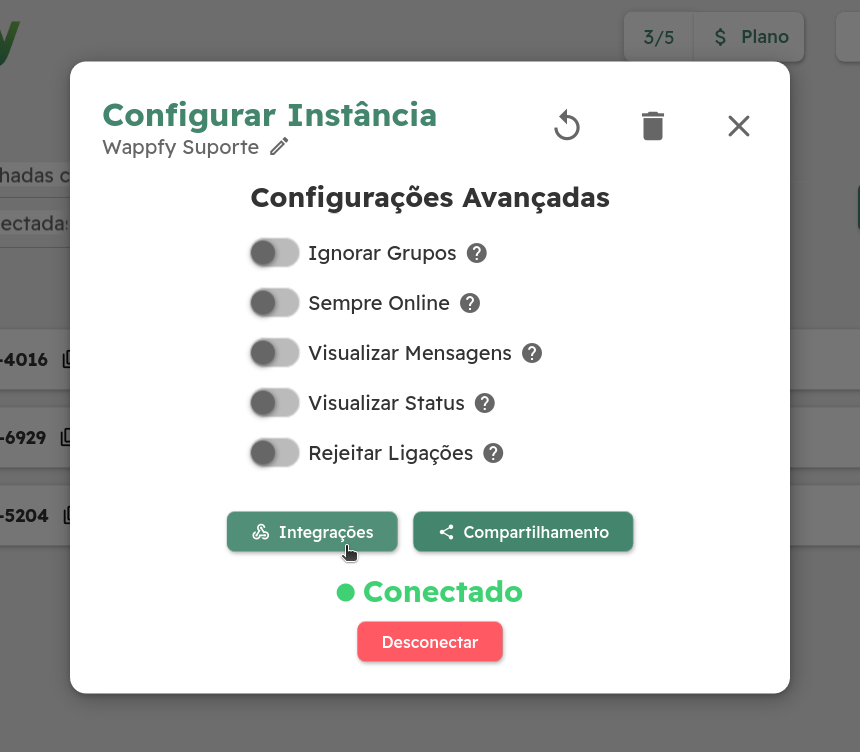
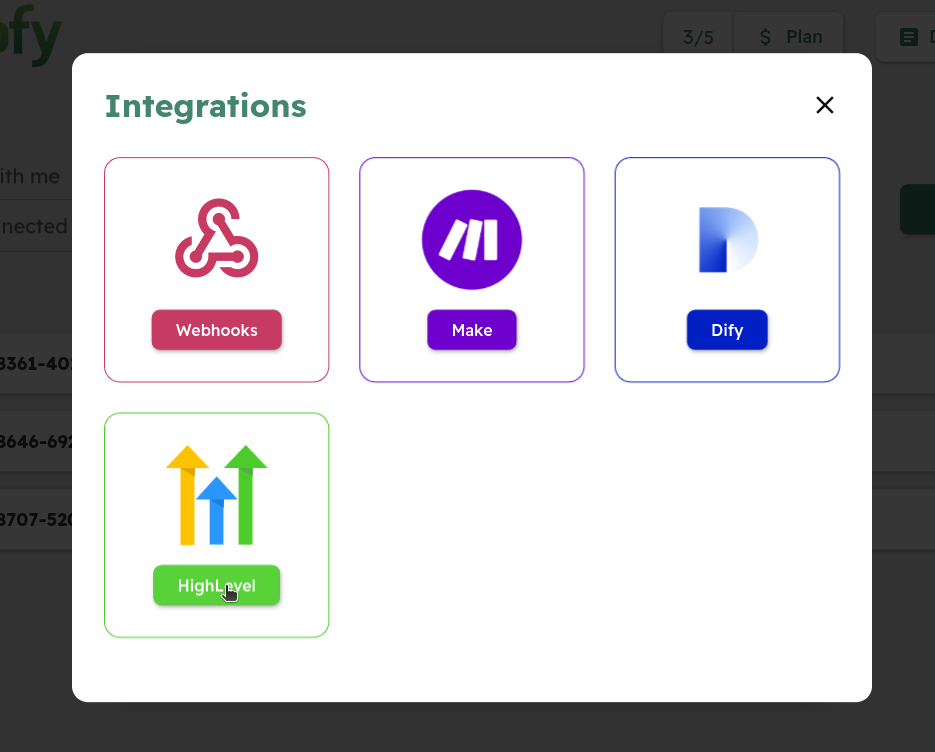
    Acesse a aba de integrações e clique em GoHighLevel para realizar a autenticação do GHL.
    <Frame>
      <img width="350" src="https://mintcdn.com/stgcompany/TAy5IIm4Yq3mr8PO/pt/assets/ghl/6_edit_instance.png?fit=max&auto=format&n=TAy5IIm4Yq3mr8PO&q=85&s=95b08c292e97c119b746c00445b99d03" data-path="pt/assets/ghl/6_edit_instance.png" />

      <img width="270" src="https://mintcdn.com/stgcompany/TAy5IIm4Yq3mr8PO/pt/assets/ghl/7_config.png?fit=max&auto=format&n=TAy5IIm4Yq3mr8PO&q=85&s=a0bf29d00424008cb7e8dfbbd89c90cb" data-path="pt/assets/ghl/7_config.png" />

      <img width="294" src="https://mintcdn.com/stgcompany/TAy5IIm4Yq3mr8PO/pt/assets/ghl/8_integrations.png?fit=max&auto=format&n=TAy5IIm4Yq3mr8PO&q=85&s=d6f84a33fe0ca8589256a220792261ee" data-path="pt/assets/ghl/8_integrations.png" />
    </Frame>
  </Step>

  <Step title="Autenticar com o GHL">
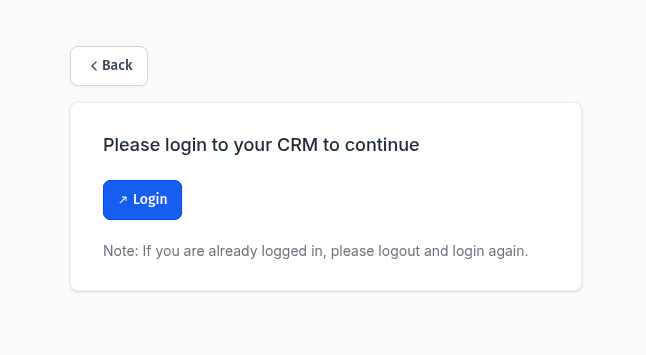
    I. Ao ser redirecionado para uma nova aba, conecte sua conta do GHL, caso já não estiver logado.
    <Frame>
      <img width={true} src="https://mintcdn.com/stgcompany/yaQeRAczFR0HWwbq/pt/assets/ghl/9_ghl_login.png?fit=max&auto=format&n=yaQeRAczFR0HWwbq&q=85&s=2b012f94657d68d153c926a4f235ce4e" data-path="pt/assets/ghl/9_ghl_login.png" />
    </Frame>

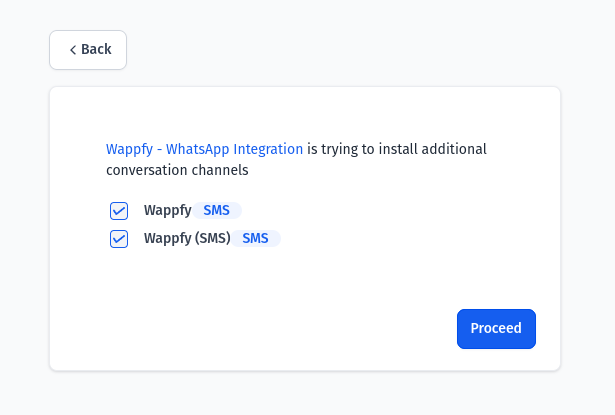
    II. Selecione sua conta (Sub-Account) e instale o Wappfy nela.
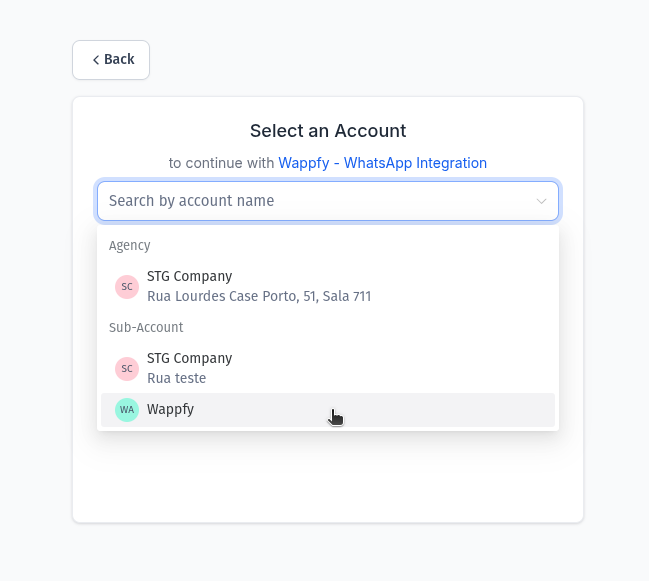
    <Frame caption="Aqui você pode desselecionar a opção &#x22;Wappfy&#x22; e deixar apenas &#x22;Wappfy (SMS)&#x22; caso for apenas utilizar o Wappfy através do canal de SMS, sem a aba extra com o nome &#x22;Wappfy&#x22; no campo de envio de texto do GHL.">
      <img width="300" src="https://mintcdn.com/stgcompany/TAy5IIm4Yq3mr8PO/pt/assets/ghl/10_ghl_select_account.png?fit=max&auto=format&n=TAy5IIm4Yq3mr8PO&q=85&s=9d1f3fd9e2fb433c9ead2a1fa216cbbb" data-path="pt/assets/ghl/10_ghl_select_account.png" />

      <img width="399" src="https://mintcdn.com/stgcompany/TAy5IIm4Yq3mr8PO/pt/assets/ghl/11_ghl_install_wappfy.png?fit=max&auto=format&n=TAy5IIm4Yq3mr8PO&q=85&s=e21351674d8178f6d562f6e35a37f370" data-path="pt/assets/ghl/11_ghl_install_wappfy.png" />
    </Frame>

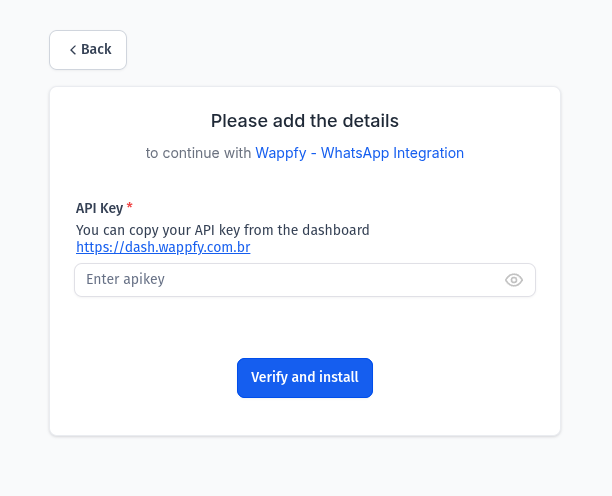
    III. Copie da Dashboard e cole no GHL a API Key e o InstanceName de sua Instância criada.
    <Frame>
      <img width={true} src="https://mintcdn.com/stgcompany/TAy5IIm4Yq3mr8PO/pt/assets/ghl/12_ghl_wappfy_credentials.png?fit=max&auto=format&n=TAy5IIm4Yq3mr8PO&q=85&s=7d78089d5895b98f162effd496135aeb" data-path="pt/assets/ghl/12_ghl_wappfy_credentials.png" />
    </Frame>
  </Step>

  <Step title="Integração Realizada">
    O nosso sistema confirmará com o GHL a integração.
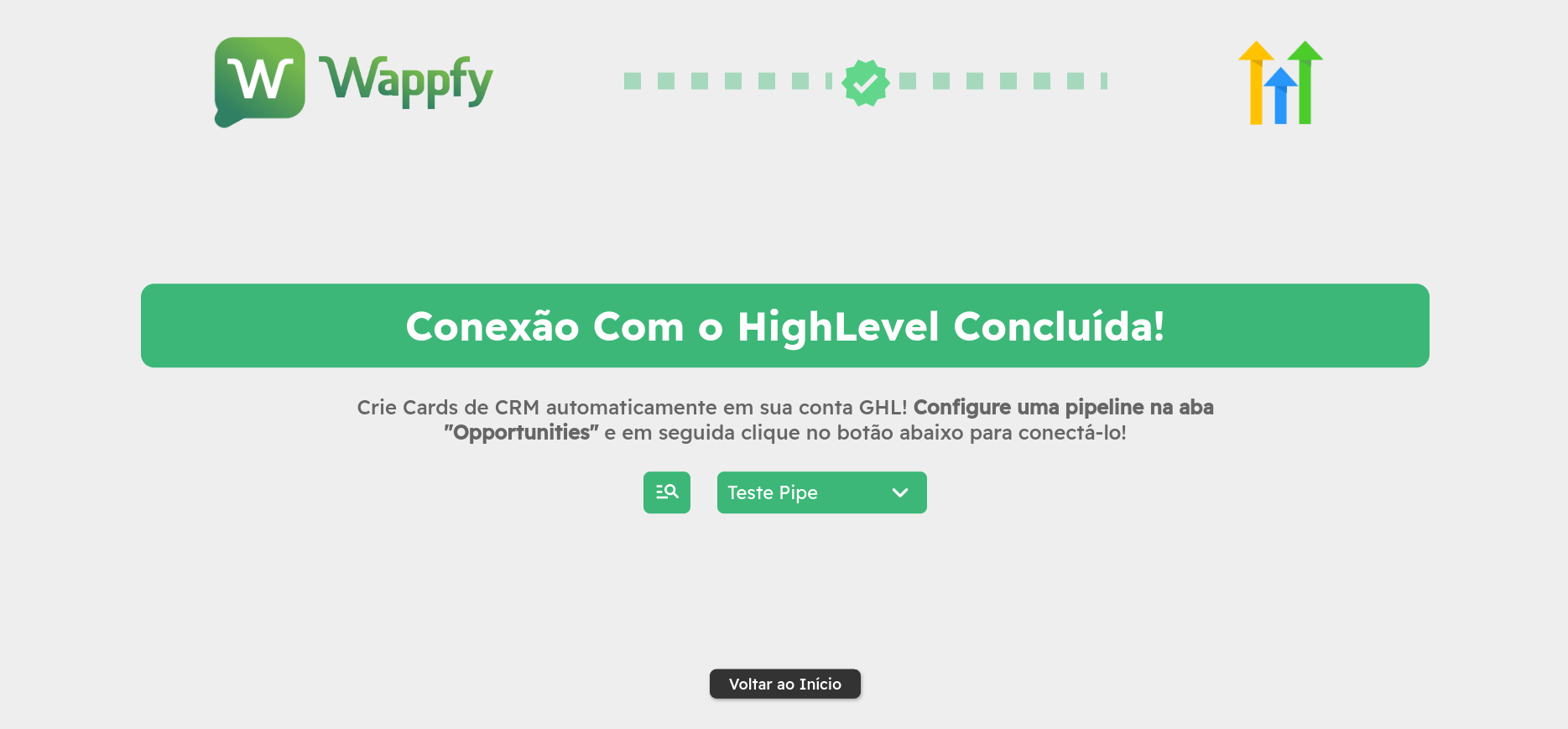
    <Frame caption="Aqui você também poderá configurar uma pipeline de CRM criada na aba de &#x22;Opportunities&#x22; de sua conta GHL. Dessa forma você terá uma criação automática de cards no CRM para cada novo contato vindo do Wappfy.">
      <img width={true} src="https://mintcdn.com/stgcompany/TAy5IIm4Yq3mr8PO/pt/assets/ghl/13_connection_succeded.png?fit=max&auto=format&n=TAy5IIm4Yq3mr8PO&q=85&s=8f8a0f9d2bd94e8245e4e9b5766eb8f4" data-path="pt/assets/ghl/13_connection_succeded.png" />
    </Frame>
  </Step>

  <Step title="Definir o Wappfy como Provedor de SMS">
    <Info>
      Para que sua integração funcione 100%, será necessário ativar o Wappfy como provedor padrão de SMS da sua sub-conta GHL.
    </Info>

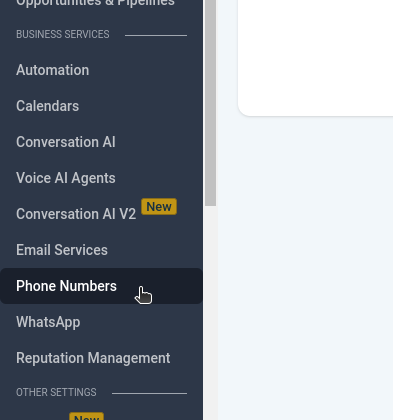
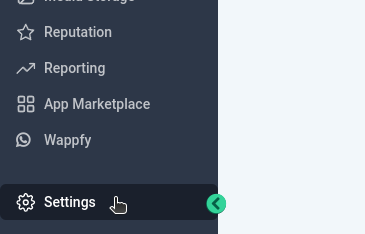
    I. Acesse as **Settings** de sua conta GHL e Clique em **Phone Numbers**.
    <Frame>
      <img width="300" src="https://mintcdn.com/stgcompany/TAy5IIm4Yq3mr8PO/pt/assets/ghl/14_ghl_settings.png?fit=max&auto=format&n=TAy5IIm4Yq3mr8PO&q=85&s=ab8ff57e89d9153fdb63616981d99d80" data-path="pt/assets/ghl/14_ghl_settings.png" />

      <img width="200" src="https://mintcdn.com/stgcompany/TAy5IIm4Yq3mr8PO/pt/assets/ghl/15_phone_numbers.png?fit=max&auto=format&n=TAy5IIm4Yq3mr8PO&q=85&s=190f38f6d8a5dabe768b20a8c40bd545" data-path="pt/assets/ghl/15_phone_numbers.png" />
    </Frame>

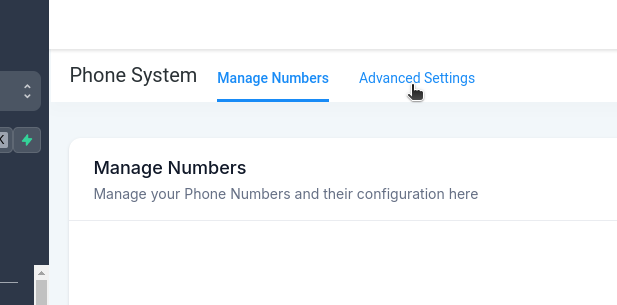
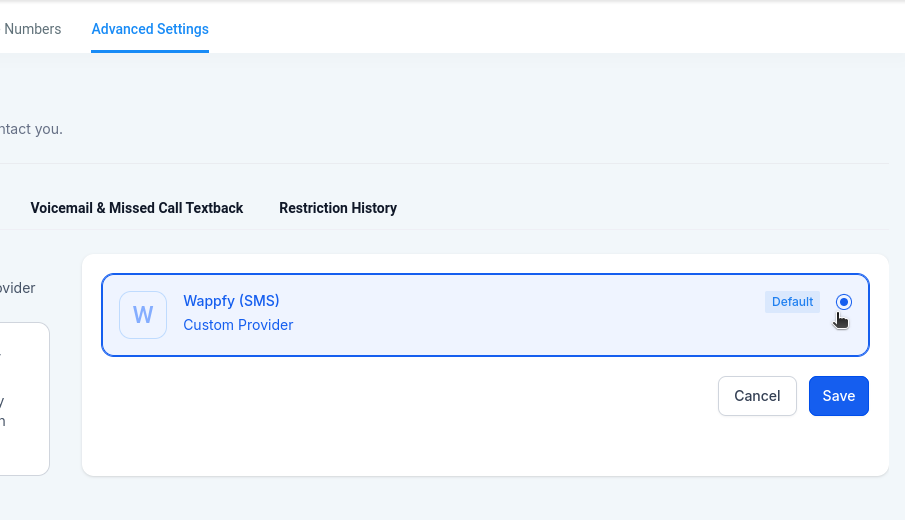
    II. Clique em **Advanced Settings** e selecione o Wappfy como provedor de SMS, clicando em **Save** (mesmo que já esteja selecionado).
    <Frame>
      <img width="300" src="https://mintcdn.com/stgcompany/TAy5IIm4Yq3mr8PO/pt/assets/ghl/16_advanced_settings.png?fit=max&auto=format&n=TAy5IIm4Yq3mr8PO&q=85&s=395f4dc278dfe8c8ac0cc0710962ace0" data-path="pt/assets/ghl/16_advanced_settings.png" />

      <img width="258" src="https://mintcdn.com/stgcompany/TAy5IIm4Yq3mr8PO/pt/assets/ghl/17_select_wappfy.png?fit=max&auto=format&n=TAy5IIm4Yq3mr8PO&q=85&s=a3e175d5630ec300755b6d5e6cb2ae9e" data-path="pt/assets/ghl/17_select_wappfy.png" />
    </Frame>
  </Step>

  <Step title="Finalizado!">
    <Check>
      Com isso você já poderá começar a responder seus clientes pelo GHL e terá um controle de todas as conversas feitas pelo WhatsApp.
    </Check>
  </Step>
</Steps>

## Bônus

<Steps>
  <Step title="Configurações de conexão GHL">
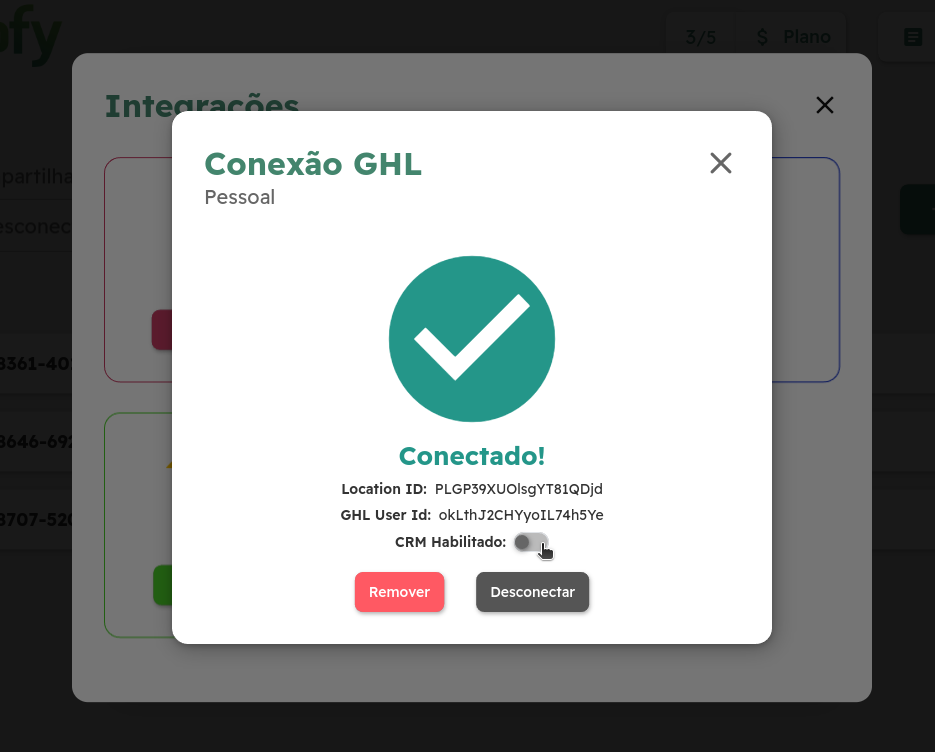
    <Frame caption="No mesmo painel de integrações de sua instância você poderá gerenciar sua conexão/integração com a sua sub-conta GHL.">
      <img width={true} src="https://mintcdn.com/stgcompany/TAy5IIm4Yq3mr8PO/pt/assets/ghl/19_connected.png?fit=max&auto=format&n=TAy5IIm4Yq3mr8PO&q=85&s=a822eb03b7e6449ca81bbdfcf84bf3e0" data-path="pt/assets/ghl/19_connected.png" />
    </Frame>
  </Step>

  <Step title="Workflow Premium Actions">
    <Frame caption="Embora você possa usar mensagens SMS padrão do GHL para trabalhar com o Wappfy, você também pode usar nossas ações premium para enviar mensagens personalizadas.">
      <img width={true} src="https://mintlify.s3.us-west-1.amazonaws.com/stgcompany/pt/assets/ghl/20_premium_actions.png" />
    </Frame>
  </Step>
</Steps>